A change detection agent opens a web page on a schedule, compares it with the previous check and tells you what changed. You describe what you care about in a sentence, for example "alert me when the price changes", and AI works out which part of the page to watch. An AI judge then reads every change and drops the ones that don't match your goal, so a new timestamp or a rotating banner doesn't land in your inbox.
This page sets up a real agent that tracks the price of a 100 g silver bar on the MMTC-PAMP online store. The same steps work for any page.
Create a change detection agent
- Sign in to Agenty, open Agents and click Create Agent. You can also go straight to the builder at
cloud.agenty.com/agents/builder. - Choose Change Detection.
- Paste the page into Page URL. In this example it's
https://www.mmtcpamp.com/shop/silver/silver-bar/banyan-tree-silver-bar-100gm. - In What should the agent watch for?, write the change you want to hear about:
Alert me when the price of the 100 g silver bar changes. - Click Set up with AI.
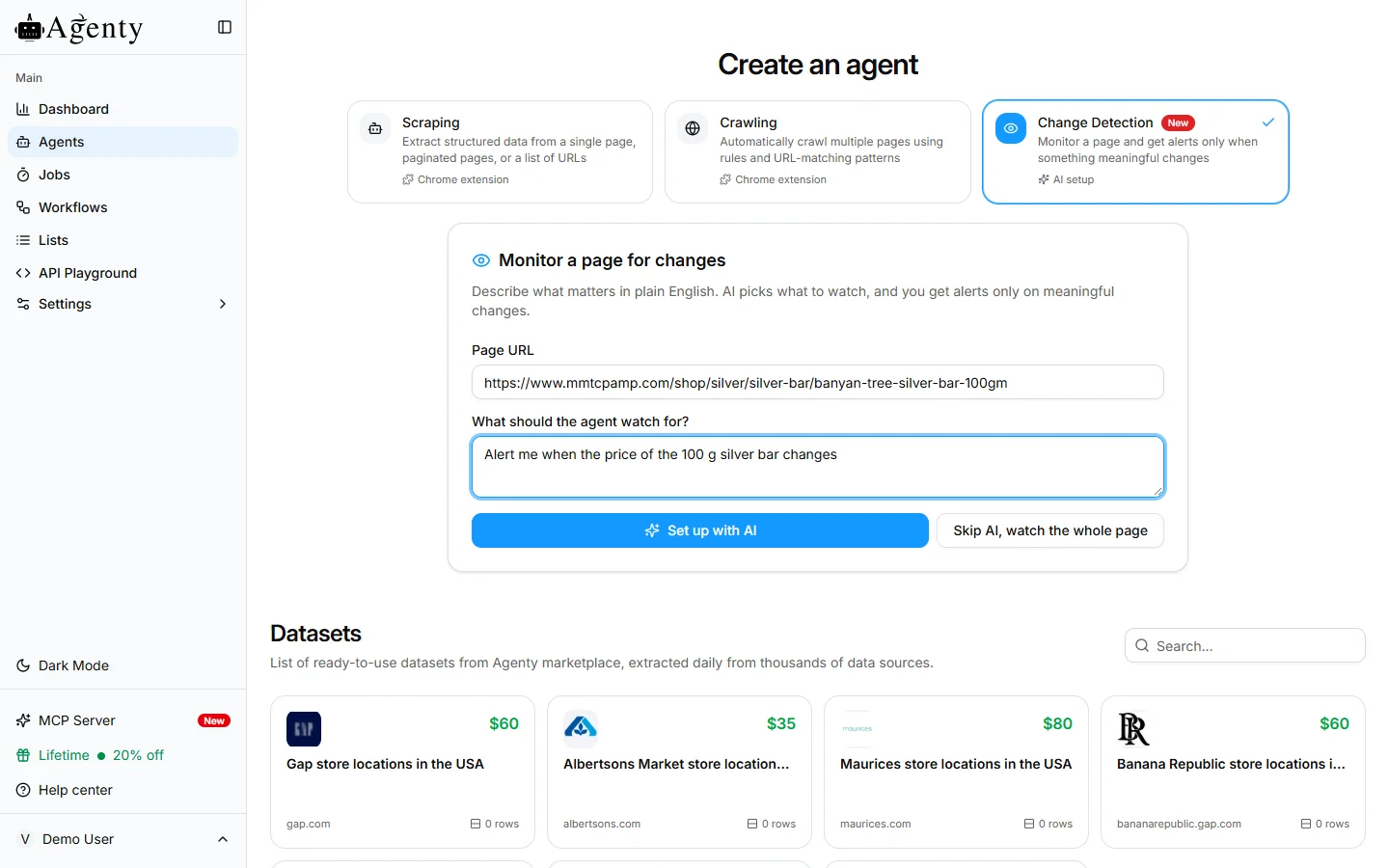
Agenty loads the page in a real browser, reads it, and comes back with a draft agent for you to review. Nothing is created yet.
If you'd rather not use AI, click Skip AI, watch the whole page. The agent then watches the full page and alerts on any text change.
Review what the agent will watch
The review screen shows everything AI picked, and you can change any of it before the agent is created.
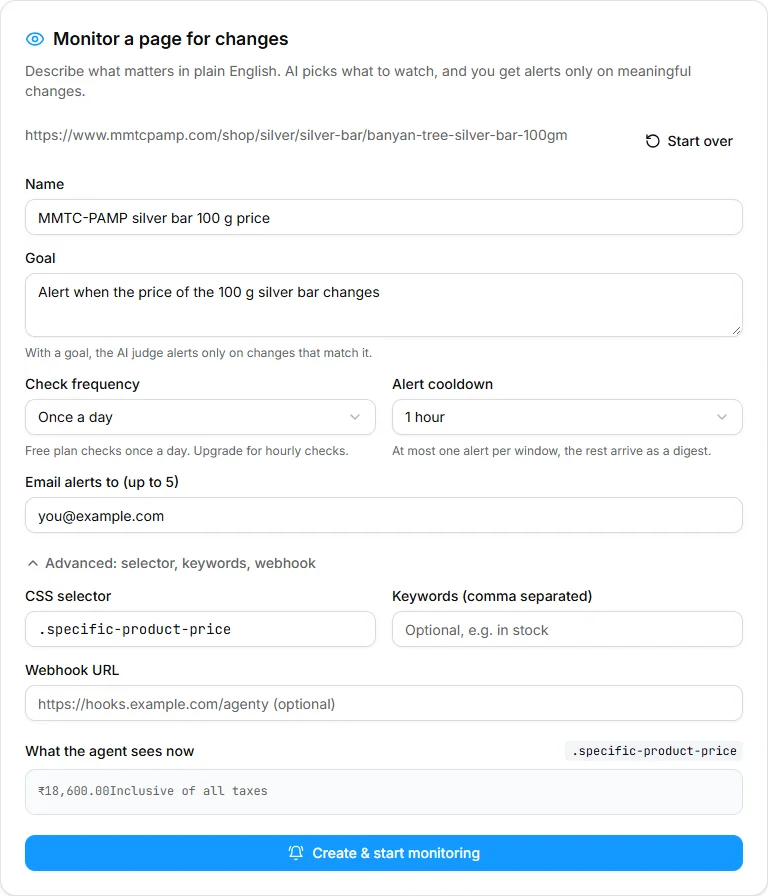
- Name is the agent's name in your dashboard and in alert emails.
- Goal is your request rewritten as a rule for the AI judge. Only changes that match it trigger an alert. Leave it empty to alert on any change.
- Check frequency is how often the page is checked: every hour, every 6 hours, once a day or once a week.
- Alert cooldown is the shortest gap between two alerts. Changes found during the cooldown are sent together in one digest when it ends.
- Email alerts to takes up to 5 addresses, separated by commas.
Open Advanced: selector, keywords, webhook to see the CSS selector AI chose. For the silver bar it picked .specific-product-price, the element that holds the price and nothing else. What the agent sees now shows the text inside that element right now: ₹18,600.00 Inclusive of all taxes.
Check that preview before you continue. If it shows the wrong part of the page, or nothing, type another selector. Narrow selectors give cleaner alerts because unrelated parts of the page are never compared.
Click Create & start monitoring. The agent is saved, scheduled, and the first check starts right away.
How checks and alerts work
The first check is the baseline. It stores the watched text and a full-page screenshot, and there's nothing to compare it with yet. From the second check on, each run is compared with the last successful one:
- Agenty loads the page and extracts the text inside your selector.
- Whitespace and common noise are ignored: relative dates like "5 minutes ago", view counters, copyright years, and when you watch the whole page, headers, menus, footers and cookie banners.
- If the text changed, the AI judge compares the added and removed lines with your goal. A change that doesn't match is saved in the history as
Ignored by AIand no alert goes out. - A change that matches sends an email, and a webhook if you set one, with a one-line summary, the added and removed lines and a screenshot.
If the AI is unavailable for any reason, the agent alerts on the raw change instead, so you don't miss one.
Check the results
Open the agent to see every check in the Result tab, with a screenshot, the content that was compared, the HTTP status, a summary of what changed and the time.
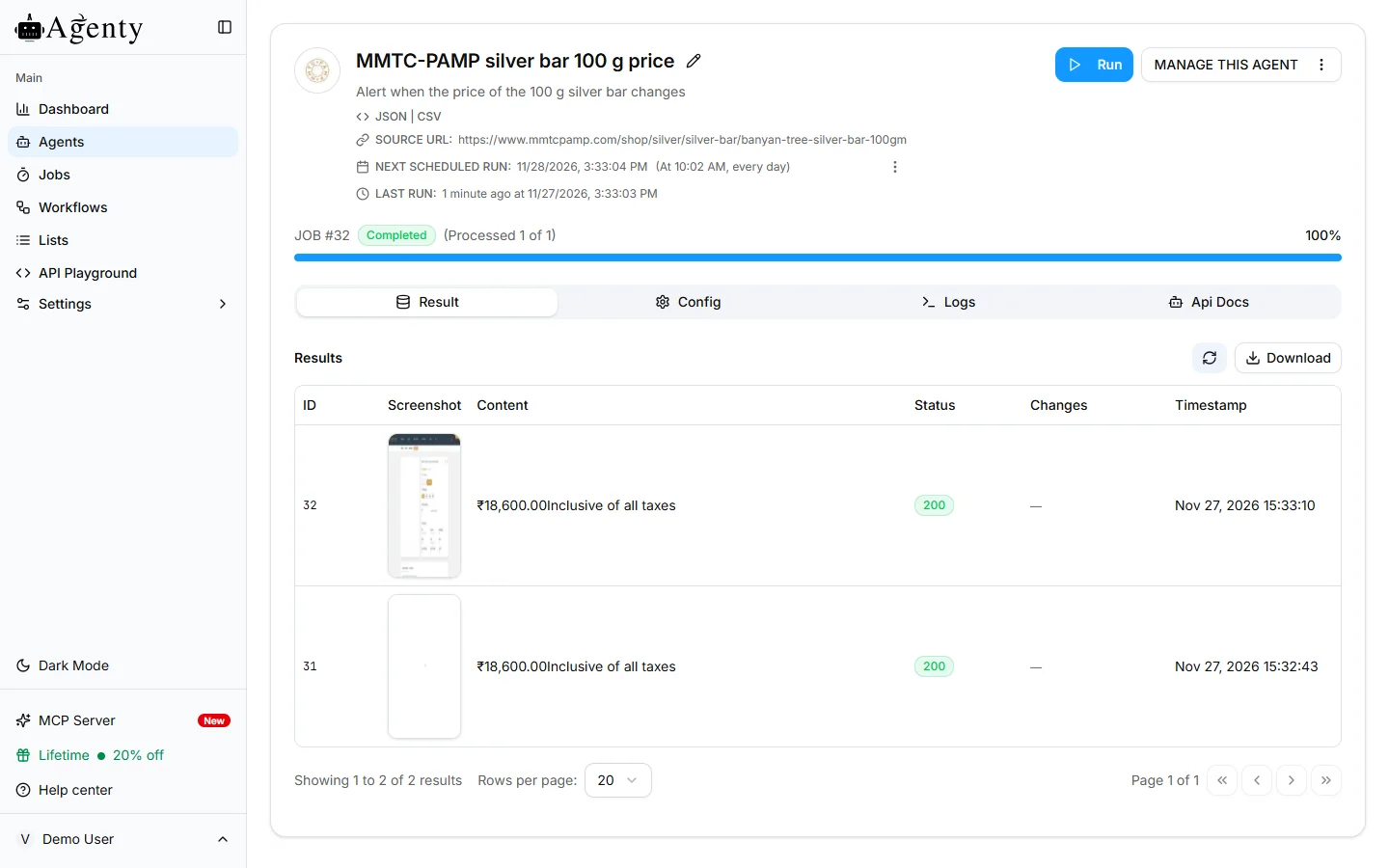
Here the agent ran twice a few minutes apart. Both checks found ₹18,600.00, so the Changes column is empty and no alert was sent. Click Run at the top to check the page now, outside the schedule. Use Download, or the JSON and CSV links under the title, to export the history.
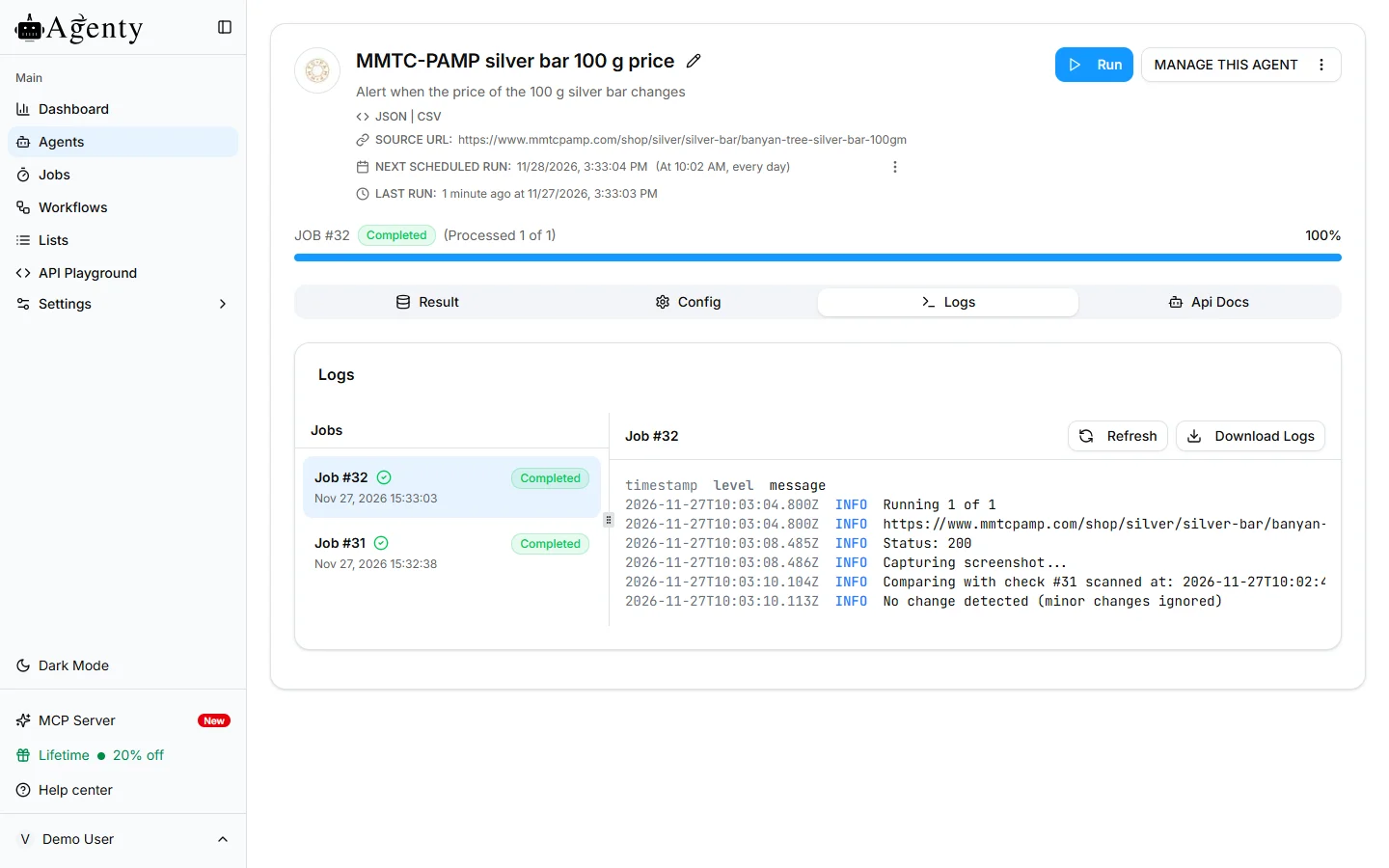
The Logs tab shows what happened on each run, including which check it was compared with:
Change the settings later
Open the agent and click the Config tab. It holds everything the builder set, plus a few options the builder doesn't show, grouped into the sections below. Click Save Config after editing. To change the schedule, use the menu next to Next scheduled run at the top of the agent page.
Watch Settings
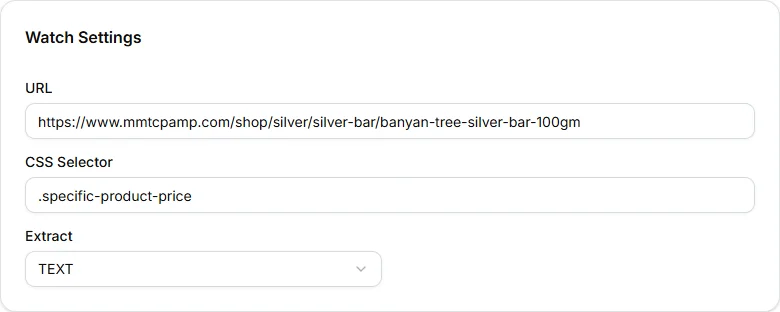
URL and CSS Selector are the page and the element to compare. Extract decides what is compared: TEXT compares the visible text, HTML compares the markup, and ATTR compares one attribute, such as href or src, which is useful for catching a changed download link or image.
AI Monitoring
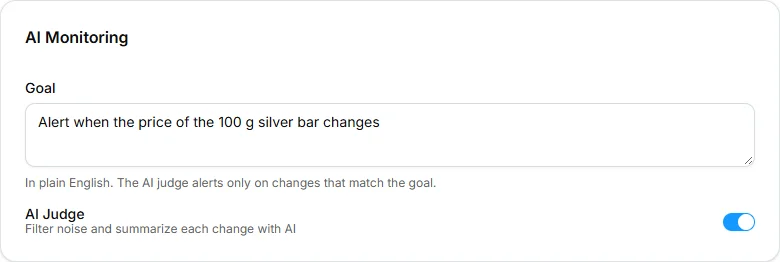
The Goal is the rule the AI judge checks every change against. Turn off AI Judge to alert on every text change without filtering or summaries.
Keyword Settings
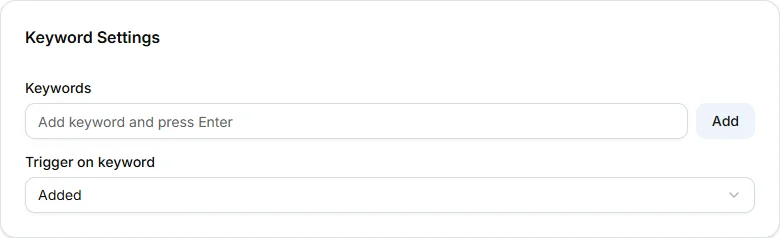
Add keywords to alert only when one of them appears (Added) or disappears (Removed) since the last check. See back in stock alerts for a worked example.
Screenshot Settings
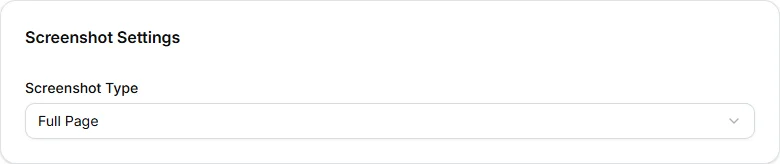
Choose Full Page to capture the whole page on every check, or Visible Area for the first screen only.
Notification Settings
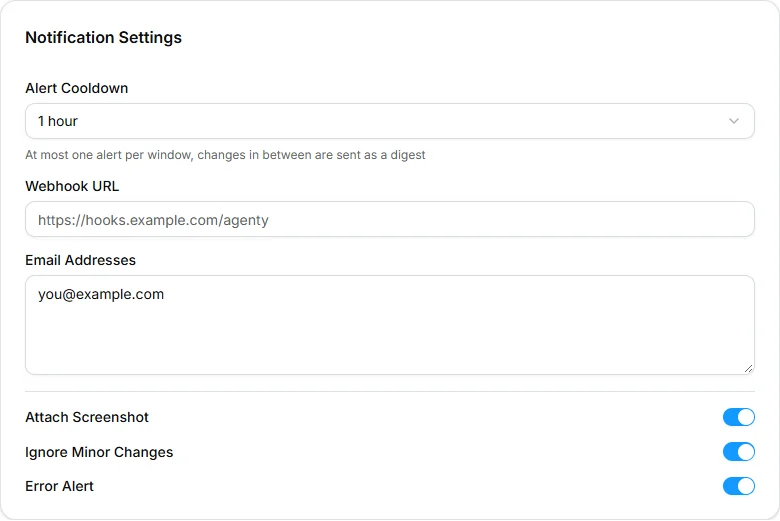
- Alert Cooldown sets the shortest gap between two alerts. Changes found in between arrive as one digest.
- Webhook URL receives a JSON event on every alert. See webhooks and API.
- Email Addresses takes up to 5 recipients, one per line.
- Attach Screenshot adds the screenshot to the alert email.
- Ignore Minor Changes skips whitespace and noise such as relative dates and counters.
- Error Alert emails you when the page fails to load. It's sent only after two failed checks in a row, and at most once a day, so a single timeout doesn't wake you up.
The Config tab also has Proxy, Wait For and Browser Settings in the left menu, for pages that need a country-specific proxy, a delay before reading, or JavaScript turned off.
Plans and check frequency
The Free plan and the lifetime Personal and Advanced plans check each agent at most once a day. Basic, Professional and Business plans can check every hour or on any CRON schedule. Checks use page credits from your plan, and the Free plan includes 3 agents. See pricing for the limits on each plan.
Create agents from Claude or ChatGPT
You don't have to use the dashboard. Connect the Agenty MCP server to Claude, ChatGPT, Gemini, Cursor or Claude Code, then ask in plain English:
Monitor https://www.mmtcpamp.com/shop/silver/silver-bar/banyan-tree-silver-bar-100gm
and alert me when the price of the 100 g silver bar changes.
The assistant calls the create_change_detection_agent tool and the agent shows up in your dashboard like any other. See Create a website monitor from Claude or ChatGPT for the setup and more prompts.
Use cases
Each of these guides sets up a real agent for one kind of page:
- Monitor competitor prices with AI tracks silver and gold prices on MMTC-PAMP.
- Back in stock alerts uses keywords to catch "Out of Stock" and "Add To Cart".
- Track changelog and release notes updates watches a SaaS changelog for new features.
- Track competitor job postings tells you when a careers page adds or removes a role.
- Monitor privacy policy and terms changes watches privacy policies and terms of service.
- Get alerts for new blog posts alerts you when a new article is published.
To connect alerts to your own systems, read Change detection webhooks and API.